Holiday Hours on Google: Update Your Business Profile Now
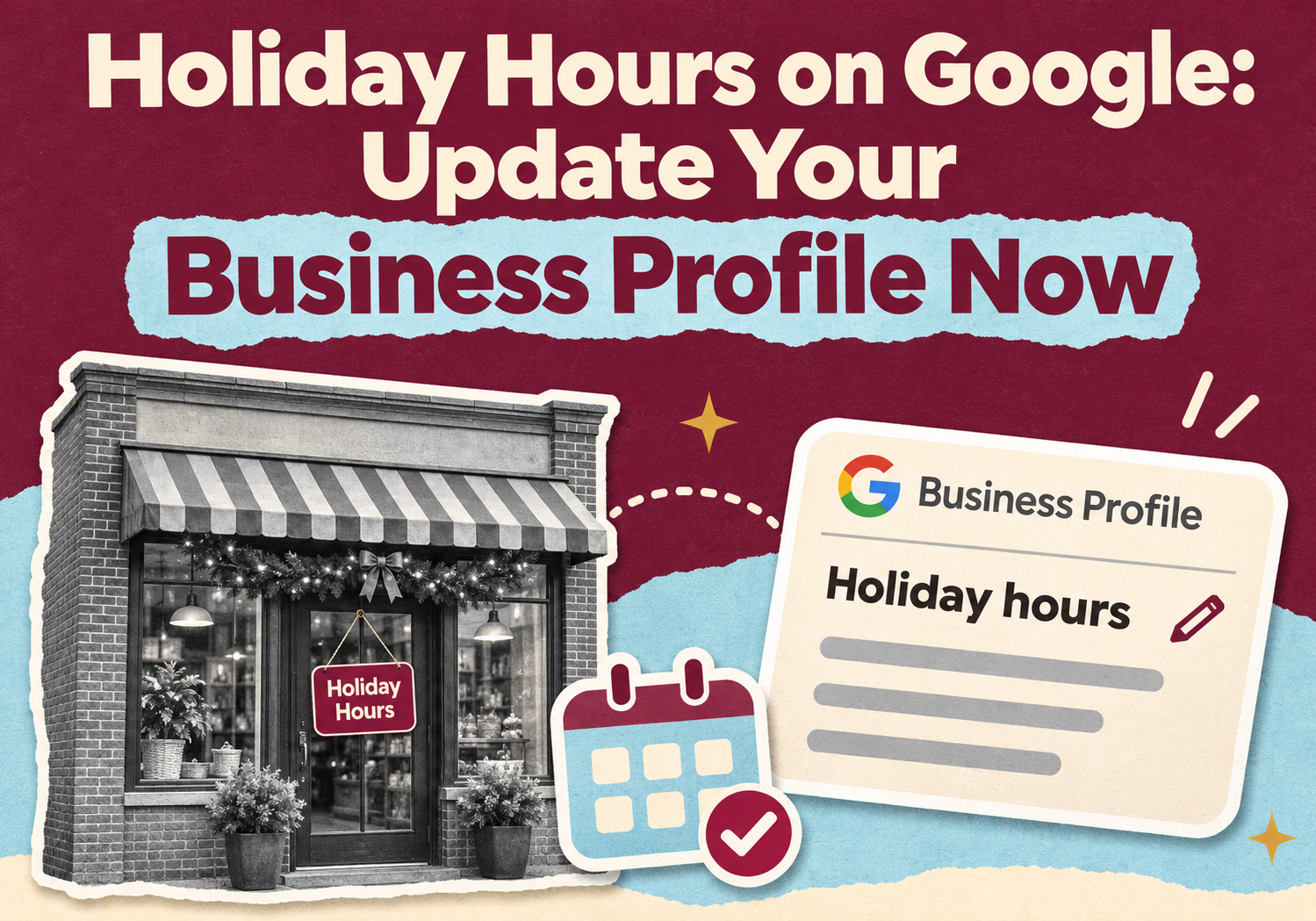
Thanksgiving is on Thursday, November 26, 2026, and the rest of the holiday season follows fast. If your hours change on any of those days, your Google Business Profile needs to say so before customers search. A customer who drives to a closed shop that Google showed as open rarely gives you a second chance. This guide shows exactly how to set special holiday hours, what to check, and what to do if you're closed for a stretch.
Why do holiday hours matter for local SEO?
Because Google shows your hours directly in Maps and local results, and wrong hours send customers away. Google says businesses with complete and accurate information are more likely to show up in local results. Hours are part of that picture, along with your categories, services and contact details.
There is also a simple trust effect. People search "open now" and "near me" most when plans change around holidays. If your profile matches reality, you get the call or the visit. If it doesn't, a competitor gets it.
What dates should you plan for?
Check your calendar for every day your hours will differ from normal. For 2026, the main dates for most US businesses are:
- Thursday, November 26: Thanksgiving
- Friday, November 27: Black Friday
- Monday, November 30: Cyber Monday (matters most for online stores)
- Christmas Eve and Christmas Day: December 24 and 25
- New Year's Eve and New Year's Day: December 31 and January 1
Google recommends confirming your hours for official holidays even if they match your regular hours. That way customers see a clear answer instead of guessing.
How do you set special hours on Google Business Profile?
Special hours let you change your hours for a specific date without touching your regular schedule. Here are the steps from Google's help page:
1. Open your Business Profile and select Edit profile, then Hours.
2. In the Business hours section, click the edit icon next to Special hours.
3. Pick a date. You can confirm a date Google suggests, add a custom one, or edit one you already set.
4. Enter the hours for that day. You can add more than one time block if you close for a break.
5. Save.
If you manage many locations, Google also lets you set special hours in a bulk upload spreadsheet using the Special hours column.
What if you are closed on a holiday?
Mark the date as closed. On the web, check the Closed box for that date. In a spreadsheet, enter an x for an all-day closure. Don't leave the day blank, because your regular hours stay in effect on that date and customers will see you as open.
Two limits are worth knowing:
- Special hours can cover a closure of up to six days in a row. For seven days or more, or if you don't know when you'll reopen, Google recommends marking the business as Temporarily closed instead.
- A single set of special hours can't run longer than 24 hours. If you work overnight, split the hours across two dates.
What settings can stop special hours from showing?
Google says special hours only appear on the dates you set, and your business hours must be set to Open with main hours for them to show on your profile. If your profile is set to another status, such as temporarily closed, your special hours won't display the way you expect. Check this setting after you save.
What else should you update at the same time?
Hours are the urgent job, but a few quick checks make your profile stronger for the season:
- Your website and contact page. Put the same holiday hours on your site so Google and customers see matching information.
- Other listings. Update Apple Maps, Yelp, Facebook and any industry directories with the same hours. Our Dallas and Prosper local SEO guide explains why consistent business details matter.
- Phone and voicemail. Make sure your greeting matches what your profile says.
- Reviews. Reply to recent reviews and ask happy customers for one. Holiday traffic is a good time to add real feedback.
- Photos and services. Add current photos and any seasonal services you offer.
If you sell online, our Shopify Black Friday checklist covers the store side of the same weekend.
How do you handle holiday hours across several locations?
Set a standard process and one owner for it. Make a simple list of locations and the hours each will keep on each holiday, then update every profile from that list. A bulk upload is often faster than editing each profile by hand, and it keeps hours consistent across your listings. Check a few profiles in Google Maps afterward to confirm the changes show up.
When should you set your holiday hours?
Now. Google's help page doesn't state how far ahead you can schedule special hours, but there is no benefit to waiting. Set the dates this week, then do a quick check a few days before each holiday in case your plans change. If something does change at the last minute, edit the date right away.
You can also test your work. Search your business name on your phone, look at the hours shown for each holiday date, and compare them with your real schedule.
How can 10Native help with local SEO?
10Native is a full-service digital agency headquartered in Prosper, Texas, with a sub-office in Warner Robins, Georgia and a production center in Karachi, Pakistan. For local businesses we can help with:
- Google Business Profile cleanup, including hours, categories and services
- Consistent listings across the major directories
- Service and location pages that match what customers search for
- A simple review request routine
- Plain-language monthly reporting
We can't guarantee rankings or visibility, and neither can anyone else. What we can do is fix the details you control, in a sensible order. See our digital marketing services, or read our Austin Google Maps checklist for a step-by-step look at Maps ranking.
Want your Google Business Profile ready for the holidays? Tell us about your business and we'll tell you what to fix first.
Talk to 10NativeFrequently asked questions
How do I add holiday hours to my Google Business Profile?
What happens if I don't set special hours for a holiday?
Can I mark my business closed for a whole week?
Why are my special hours not showing on my profile?
Can special hours run past midnight?
Do holiday hours affect my local SEO?
Does 10Native help with Google Business Profile management?
Questions? Call 415 489 9314 or 214 758 7971, or email info@10native.com.
10Native Team
Building resilient enterprise solutions in AI/ML, Data Engineering, Fintech & Digital Marketing.